
Machine signal lights and recovery scenarios
See which reported condition needs attention and find the full recovery reference.
Step by step
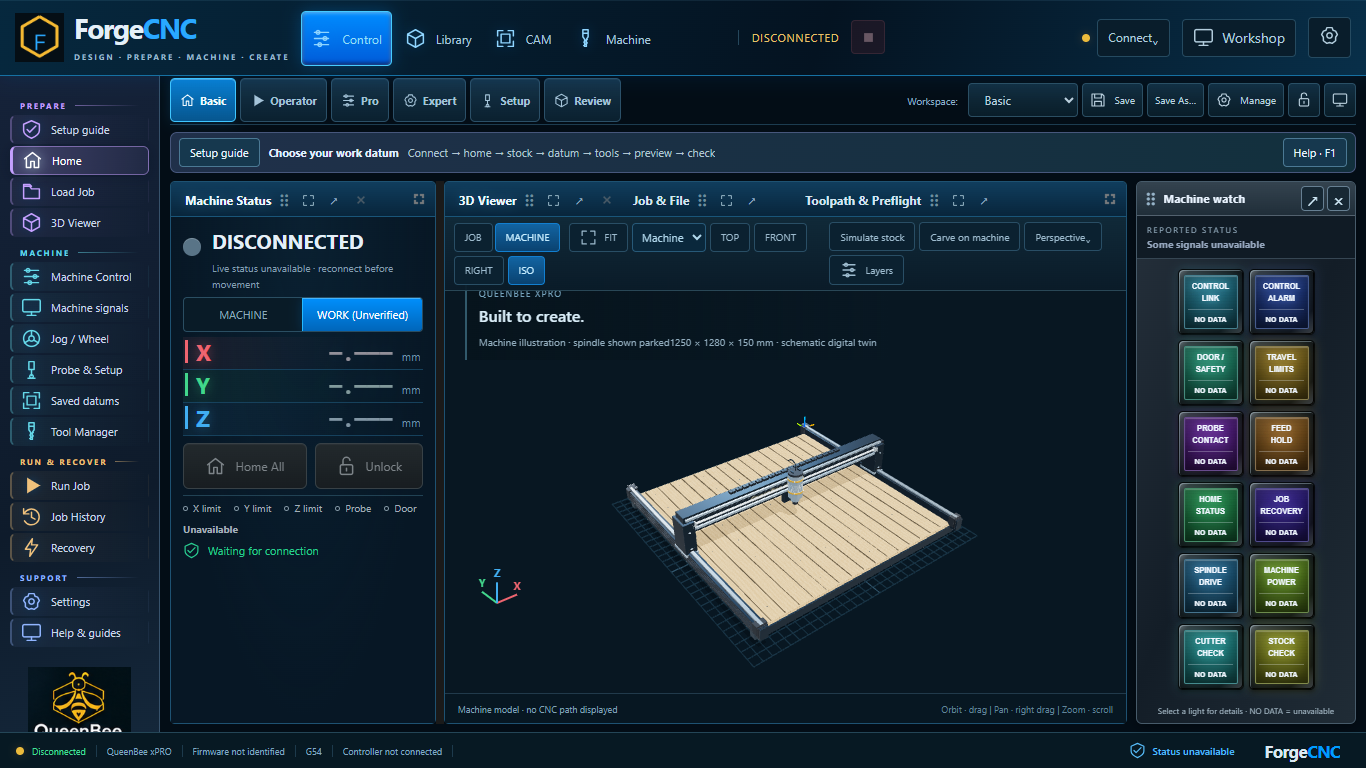
- Machine watch is a tall panel docked on the right. Each tile has a readable name and current-state text. Select a tile for its explanation, or open Machine signals from the sidebar.
- Each channel has a distinct normal glow, with no red normal state. Bright red with FAULT means a reported fault, active stop input or retained interruption. CHECK and an amber marker mean attention, such as feed hold or probe contact. Channel colours remain visible when disconnected or unmonitored. NO DATA means there is no usable report; colour identifies the channel, not confirmation that it is clear.
- A probe can contact during a measurement and a limit can contact during homing. Read the current workflow and the explanation before interpreting an input as a new failure.
- On a physical machine, power, cutter integrity, stock movement and dedicated VFD fault telemetry may be unavailable. The digital twin can show simulated versions of these signals. A clear indication does not prove wiring or give permission to run.
- Choose Recovery scenarios to search the full list: power, USB, reset, crash, door, E-stop, limits, probes, VFD, spindle stall, broken or slipped tools, stock movement, wrong tool or WCS, G-code problems and journal failures. Each entry explains detection and the next checks.
- Open the Recovery workspace for an interrupted job. Clearing a light does not clear the saved interruption or restart motion; follow the fresh verification and explicit continuation process.
Saved learning progress will be available when accounts open.
Learning progress records reading, not physical commissioning or authorisation to operate.