
Play and scrub animated stock carving
See the route and approximate material removal before connecting to a machine.
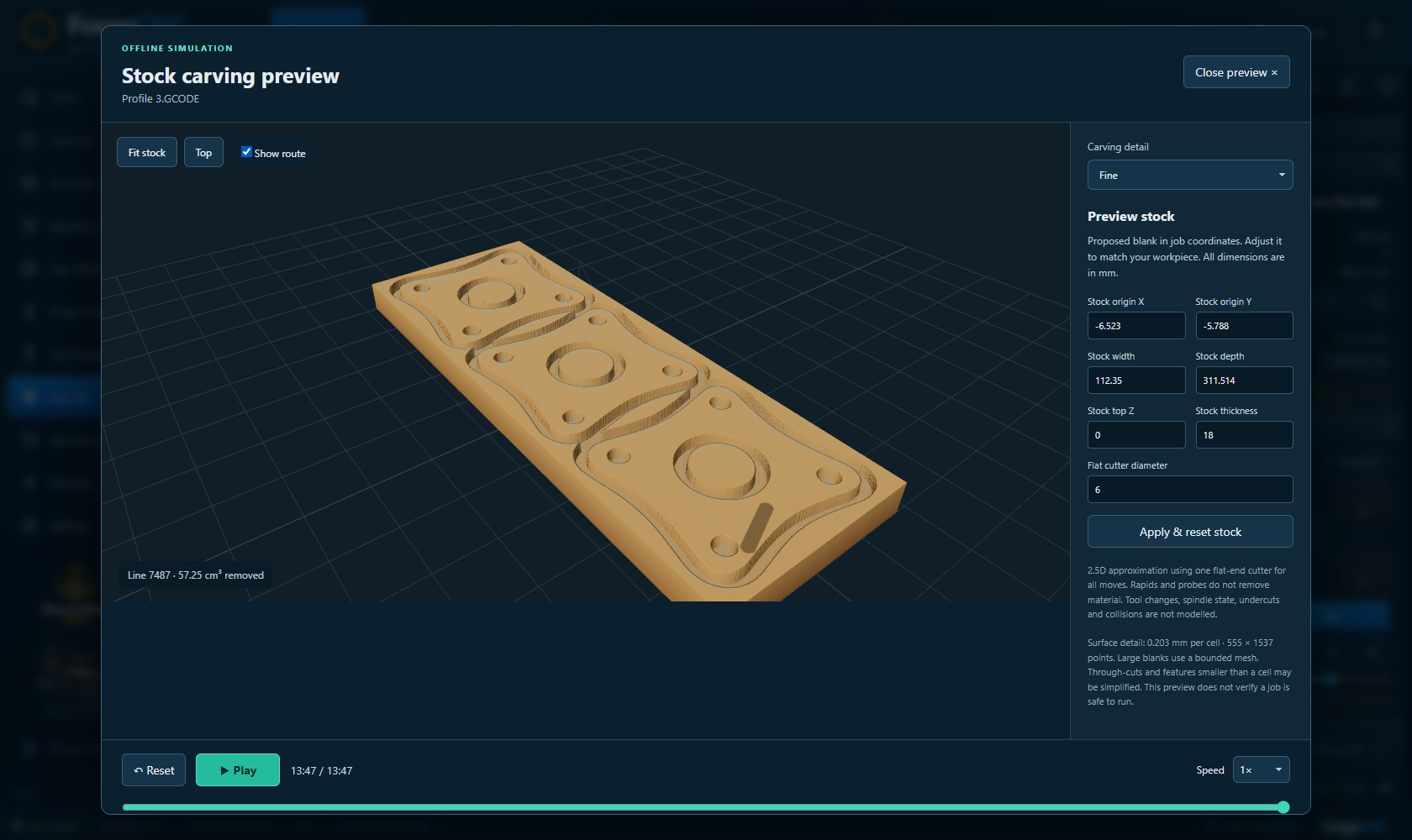
Step by step
- While disconnected, load a CNC job and open 3D Viewer.
- Choose Simulate stock for the separate carving window, or Carve on machine to place the carving on the illustrated machine.
- Choose Play or Pause, drag the timeline to inspect a moment, change speed, or Reset to the uncut stock. Fine is the default detail; Standard uses fewer resources and Ultra uses more.
- Turn on the route lines when inspecting the cutter path. Use Focus stock and the view controls to see the cut clearly.
- In Carve on machine, choose Stock & datum to select a saved fixture reference or adjust preview stock and placement. A saved XY datum retains the current preview Z unless it has an optional preview height.
Saved learning progress will be available when accounts open.
Learning progress records reading, not physical commissioning or authorisation to operate.