Browser practice and application setup. Physical installation, controller commissioning, homing, probing and live cutting are separate lessons. This is the written production pack; the narrated video has not yet been recorded or rendered.
What this lesson achieves
The learner can find the main controls, save and export a clearly labelled practice machine profile, distinguish a simulated connection, and inspect an offline practice job.
Audience
A new ForgeCNC user working on a desktop or laptop. No previous ForgeCNC knowledge assumed.
Recording format
Proposed 16:9, 1920 × 1080, narrated screen recording with captions and chapter markers.
Narration direction
Suggested delivery: calm, clear British English, approximately 130 words per minute. Voice selection and recording remain to be done.
Release and evidence
ForgeCNC 0.2.0. Fresh local browser captures with no physical controller. Fictional profile and preview-only file. Screenshot manifest.
Prepare before recording
Open the ForgeCNC website at https://forgecnc.io. The browser preview uses the retained 0.2.0 build.
Use a fresh browser profile for the recording so personal machine settings and account details do not appear.
Download the website’s ForgeCNC-offline-preview-only.nc sample. It is a visualisation exercise, not a machine-ready cutting programme.
Use only Virtual xPRO for the connection demonstration. No physical controller, spindle or axes are operated in this lesson.
Begin each scene with enough of the screen to establish the location, then frame the control named by the narrator. Keep clicks and labels readable.
Read only the Narration paragraphs into the microphone. Actions, emphasis and checkpoints are production notes, not spoken text.
Use one visible click at a time and hold the resulting state. Keep the same practice profile and sample filename through the lesson.
The fifteen PNGs are actual 1920 × 1080 captures. Record the intermediate clicks, dropdown selections and Play/Pause movement for the finished video; a still image cannot demonstrate movement.
Use the current website logo on the opening and closing cards. Preserve the app identity visible in the actual captured release.
Use concise captions, with a reserved caption area that does not cover the timeline or buttons. Keep the SIMULATED or DISCONNECTED state visible, or repeat that exact status in an editorial label when tightly framing a control.
Durations below are planning estimates based on word count at 130 words per minute plus explicit demonstration time. Final chapter markers and subtitles must follow the recorded audio.
For the opening and closing, a short music cue is optional. Keep instructions free of competing music. No music, voiceover or rendered video has been created.
Scene-by-scene shooting script
Read the narration verbatim. The actions and checkpoints guide the recording. Each screenshot opens at its original size. Timings are estimates: 1213 spoken words, plus 211 seconds of demonstration time.
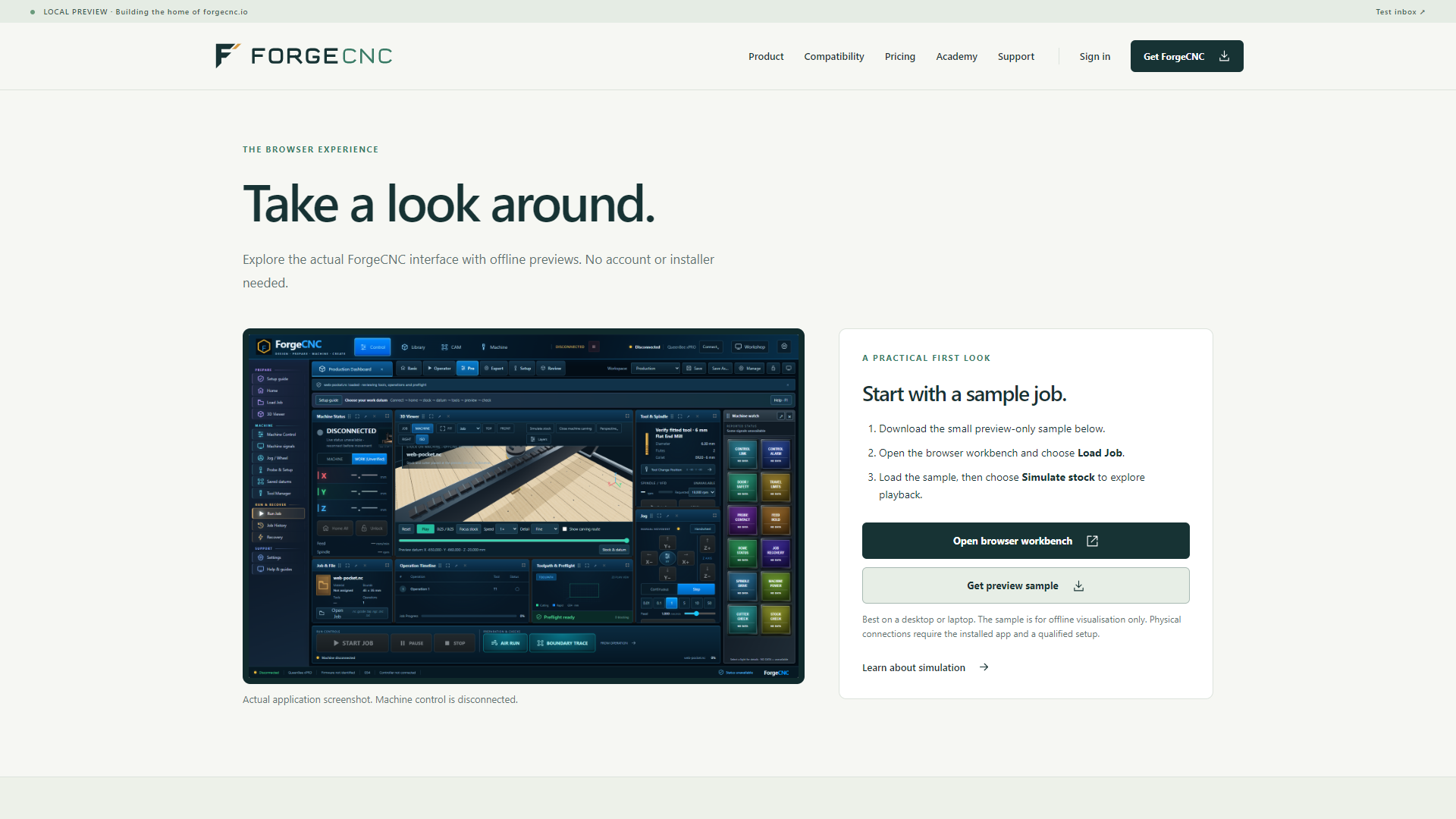
Welcome to ForgeCNC. In this first lesson, we’ll organise the screen, create a practice machine profile, and preview a simple job. We’ll use the browser preview, so you can follow along without connecting a CNC. On the website, open the Browser demo page. Choose Get preview sample, then Open browser workbench. Keep the downloaded file for later. The installed Windows and Linux apps provide the physical controller workflows; their installation and commissioning are covered in separate lessons.
On-screen emphasisFirst launch → practice profile → offline preview
On-screen actions
Show the website’s Browser demo page.
Click Get preview sample and retain ForgeCNC-offline-preview-only.nc.
Click Open browser workbench and switch to its tab.
What the learner should see
The workbench is open and the named sample file has downloaded.
Recording note
The screenshot shows the actual local website. Crop the browser address from the finished film rather than presenting 127.0.0.1 as a public address.
Allow approximately 12 seconds for demonstration and pauses beyond the spoken narration.
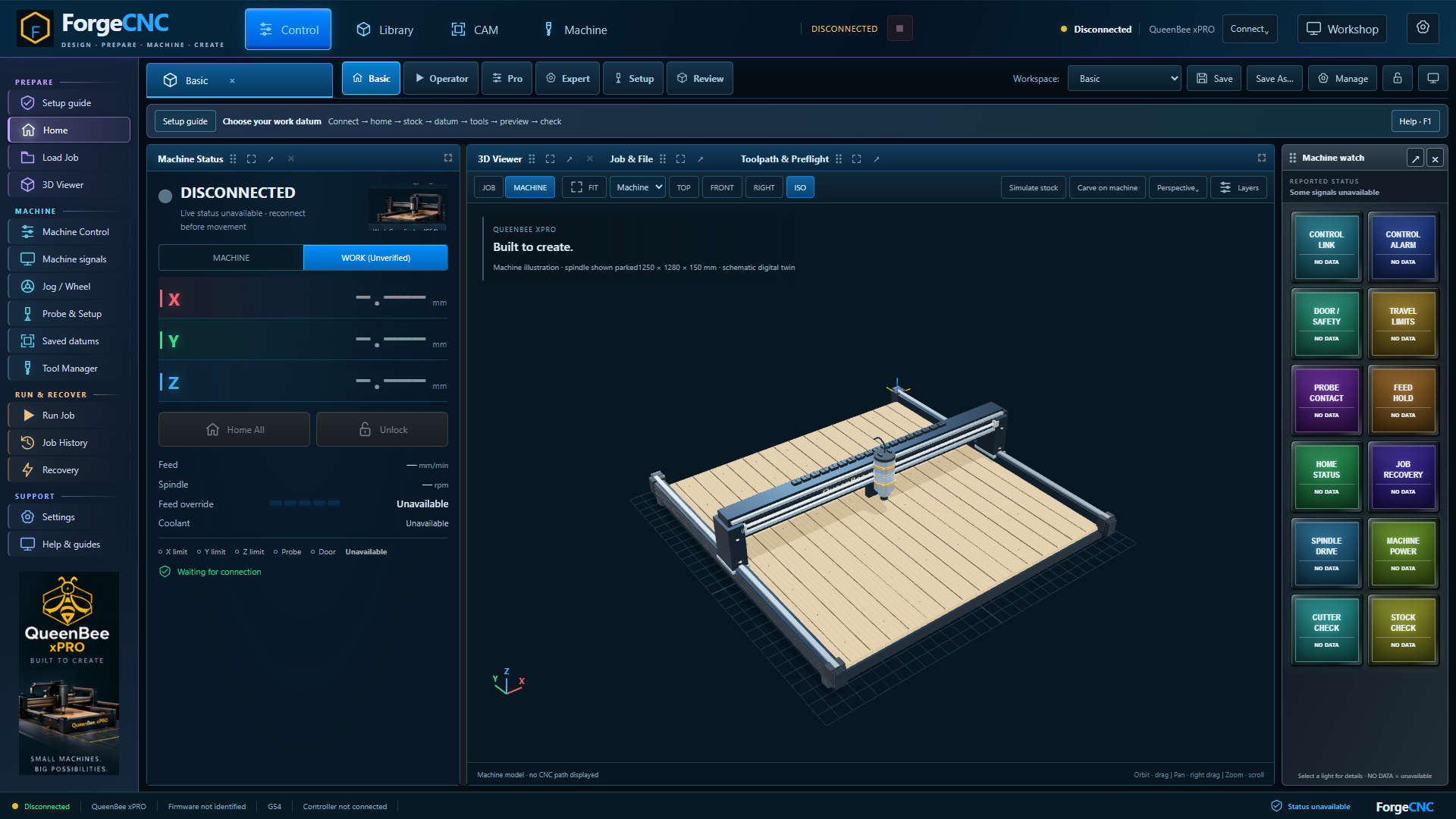
Choose Basic from the workspace controls. Start by finding four areas: connection status at the top, tasks down the left, the job and three-dimensional view in the centre, and Machine watch on the right. We are disconnected, so live position information is unavailable. That is expected. Read the words beside a light, not just its colour. NO DATA means ForgeCNC has no current report. You do not need to unlock, home or move anything to follow this lesson.
On-screen emphasisRead the state words: DISCONNECTED · SIMULATED · NO DATA
On-screen actions
Choose Basic in the workspace selector.
Point to the connection badge, left navigation, central panels and Machine watch in that order.
Hold on DISCONNECTED and a NO DATA tile.
What the learner should see
The learner can locate the status, tasks, job view and signal panel.
Recording note
This is an empty Basic workspace. Do not replace it with a screenshot containing an already running job.
Allow approximately 10 seconds for demonstration and pauses beyond the spoken narration.
03
ESTIMATED 1:34–2:22 · 77 WORDS
Make the screen comfortable to use
Screenshot 03 · Top bar → Manage → Theme Download PNG
Narration
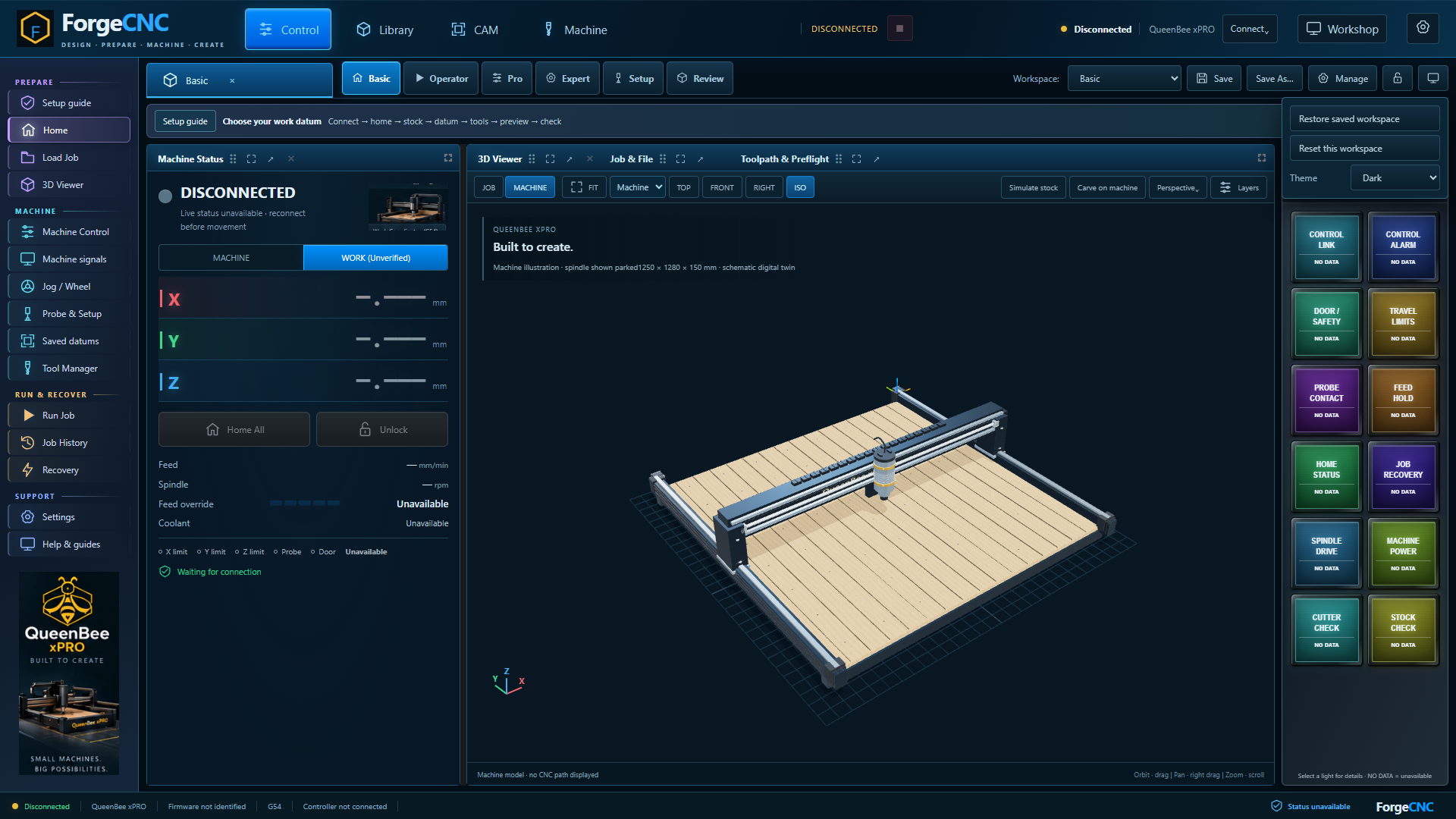
Open Manage to see the display choices. Choose Dark, Light or High Contrast to suit your screen. Workshop mode gives you larger controls when you need them. You can resize panels and choose a different workspace for a different task. Save updates the current saved arrangement; Save As gives a new arrangement its own name. These controls change how the screen is arranged. They do not change machine home, work zero or permission to run a job.
On-screen emphasisA workspace is a screen layout
On-screen actions
Open Manage and point to Theme. Keep Dark for visual continuity in this recording.
Close the menu; point to Workshop, Save and Save As without inventing a new machine setup.
If demonstrating a resize, restore the layout before the next scene.
What the learner should see
The interface is readable and the learner knows where display choices live.
Recording note
Record a brief real resize if desired; the still illustrates the Manage menu.
Allow approximately 12 seconds for demonstration and pauses beyond the spoken narration.
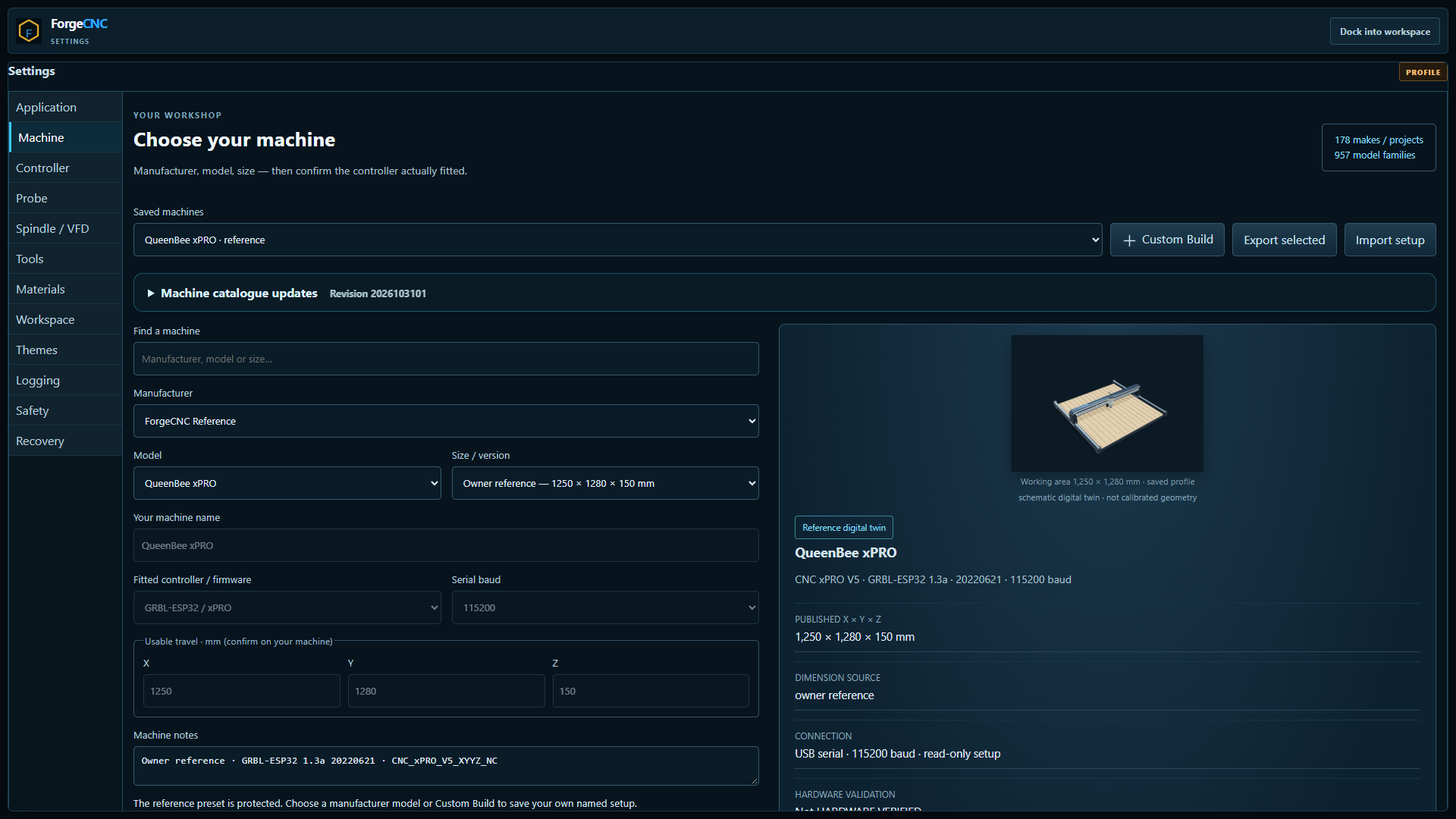
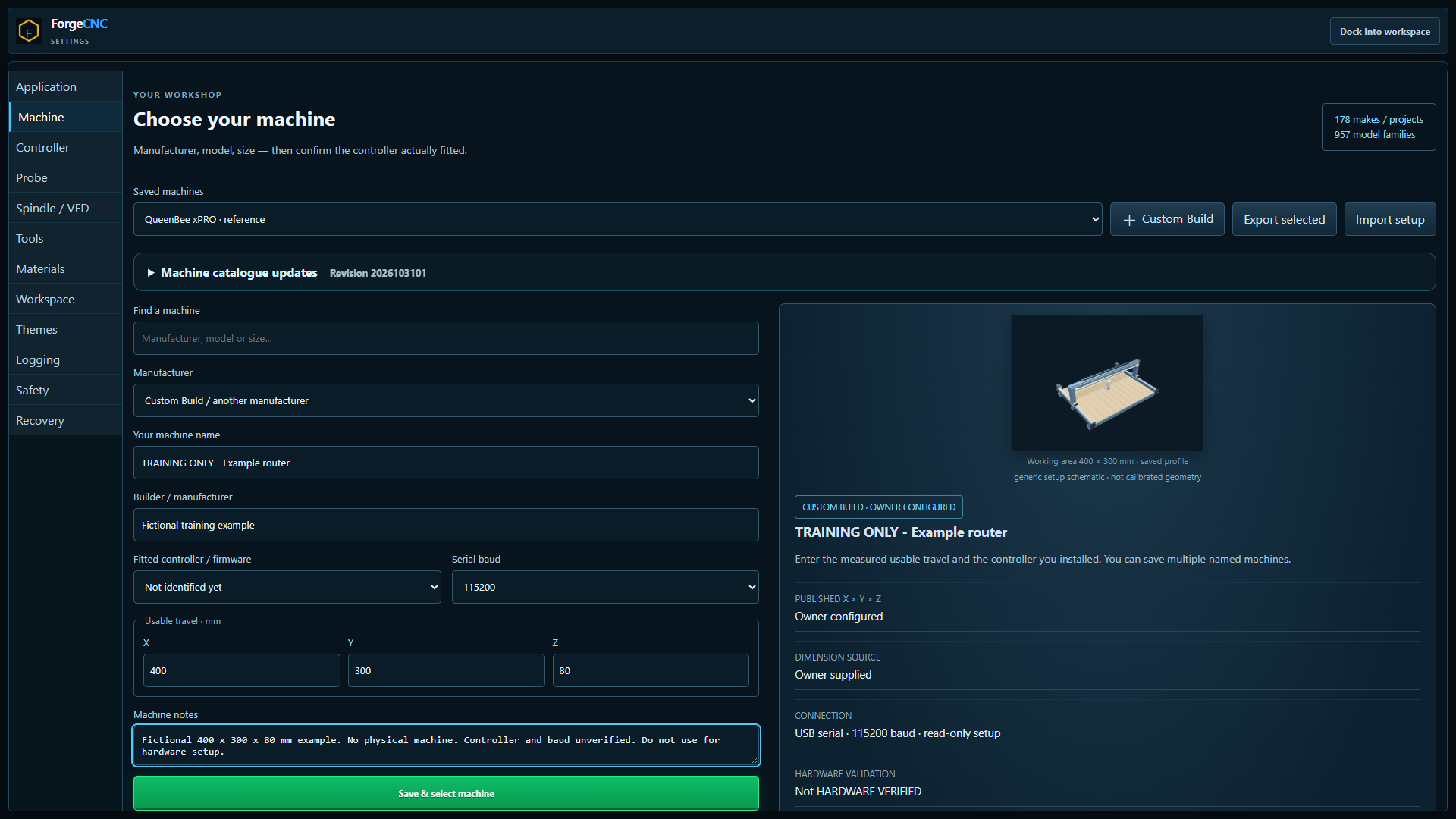
Open Settings, then Machine. This is where you organise your workshop machines. You can search the directory, choose a manufacturer, model and size, or use Custom Build. Read the information beside the model, including its dimension source and hardware-validation status. A catalogue entry is a reference; it does not prove that the fitted controller or machine has been tested. The QueenBee reference is protected. For this exercise, we’ll create a separate, clearly named training profile.
Name this profile TRAINING ONLY, Example router. I’m using fictional travel of four hundred millimetres in X, three hundred in Y, and eighty in Z. These numbers exist only for this exercise. On a real machine, enter confirmed usable travel, not the outside frame dimensions. Leave Fitted controller as Not identified yet for our fictional machine. The displayed baud rate is also unverified. Add a note that this profile is for training. For a physical setup, identify the actual controller, firmware family and connection rate before proceeding.
On-screen emphasisFICTIONAL TRAINING VALUES · Do not copy to a physical machine
On-screen actions
Enter TRAINING ONLY - Example router and Fictional training example.
Keep Fitted controller at Not identified yet.
Enter X 400, Y 300 and Z 80 solely in the isolated practice profile.
Enter the visible note: fictional dimensions, no physical machine, controller and baud unverified.
What the learner should see
The name, travel fields and notes clearly identify an unverified practice profile.
Recording note
Use a close view of the name, controller, dimensions and notes. Do not frame 115200 as a recommended universal baud rate. Custom Build requires all three travel fields to save; do not suggest guessing missing physical values.
Allow approximately 24 seconds for demonstration and pauses beyond the spoken narration.
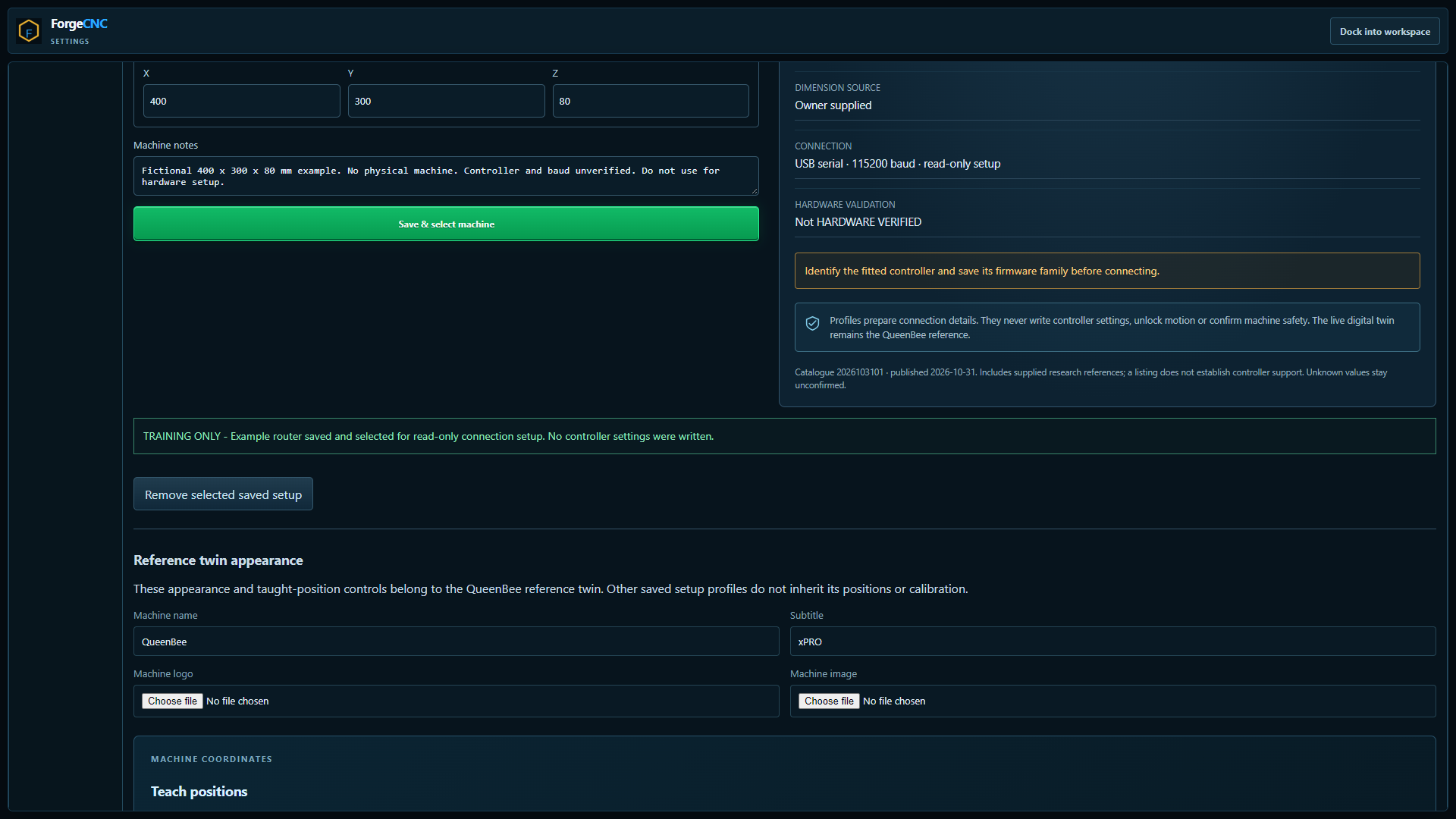
Choose Save and select machine. Read the confirmation: the profile is saved for connection setup, and no controller settings were written. It should now appear in Saved machines. That distinction matters: saving this record does not configure a controller, establish machine home or authorise movement. When you create your real profile later, give it a name you will recognise and check the saved values. For now, keep this training profile clearly separate from any real machine.
On-screen emphasisSaved profile · no controller settings written
On-screen actions
Click Save & select machine.
Scroll to the confirmation and read it before moving on.
Show that the training name is selected in Saved machines.
What the learner should see
A named practice profile exists and the confirmation is visible.
Recording note
The provided still focuses on the confirmation. Record the Saved machines selector as a short follow-up insert.
Allow approximately 10 seconds for demonstration and pauses beyond the spoken narration.
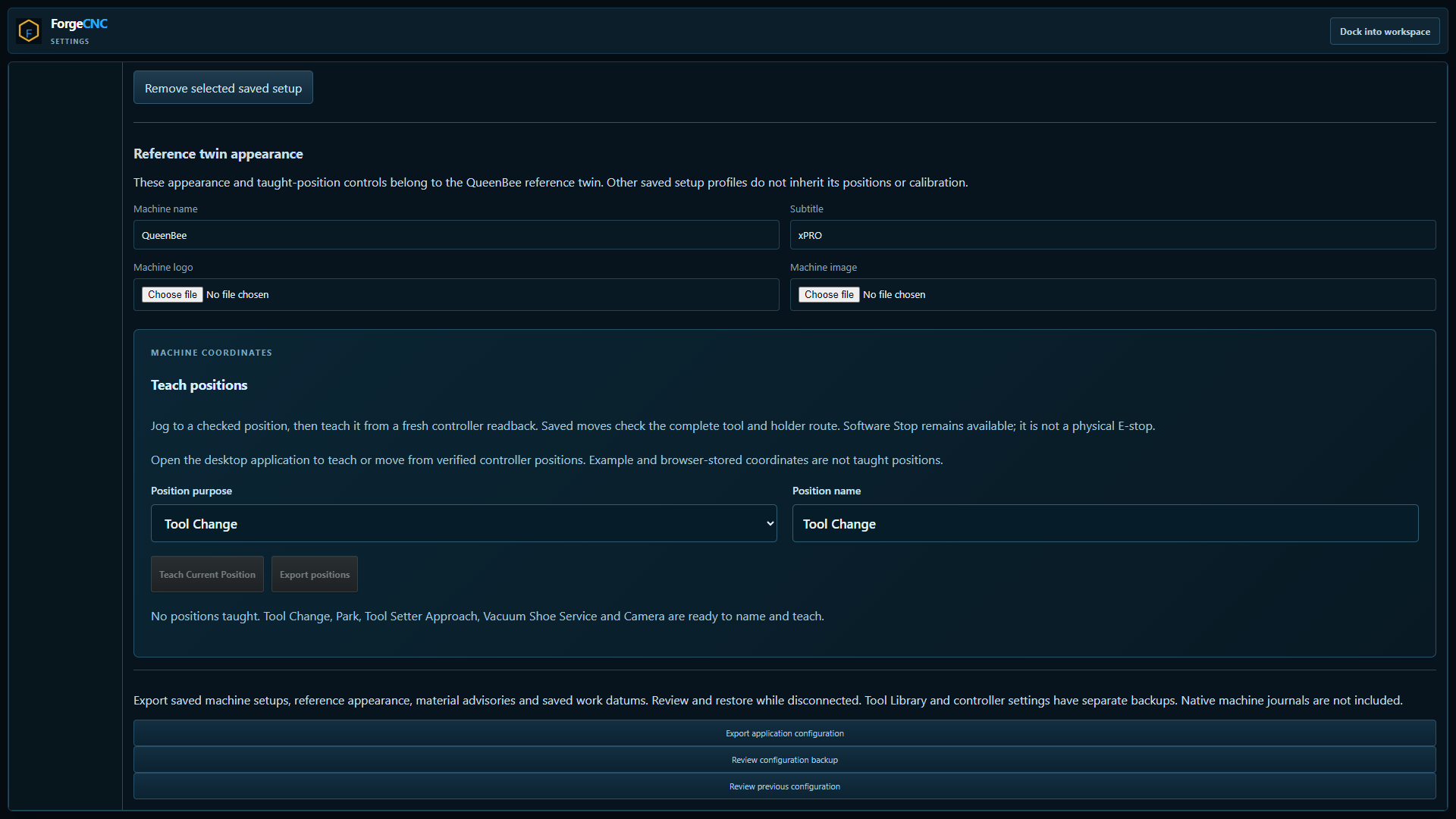
Before making more changes, scroll down to Export application configuration and save a copy. Keep the file somewhere you can find again. This backup covers application setup information such as saved machines and work datums. The Tool Library and controller settings have their own backups, and native job journals are separate. We are exporting a practice configuration here. We are not restoring anything or replacing an existing workshop setup. A later lesson will cover checking and restoring each kind of backup.
On-screen emphasisApplication configuration · tool library · controller settings are separate
On-screen actions
Scroll to Export application configuration.
Click it and show the downloaded filename without exposing personal folders.
Retain the exported file; do not import it over the learner’s existing configuration.
What the learner should see
An application-configuration download has completed.
Recording note
No training backup needs to be distributed. The actual capture used an isolated browser containing only this practice profile.
Allow approximately 12 seconds for demonstration and pauses beyond the spoken narration.
08
ESTIMATED 5:50–6:40 · 77 WORDS
Connect to the virtual controller
Screenshot 08 · Top bar → Connect → Virtual xPRO / Normal · Idle Download PNG
Narration
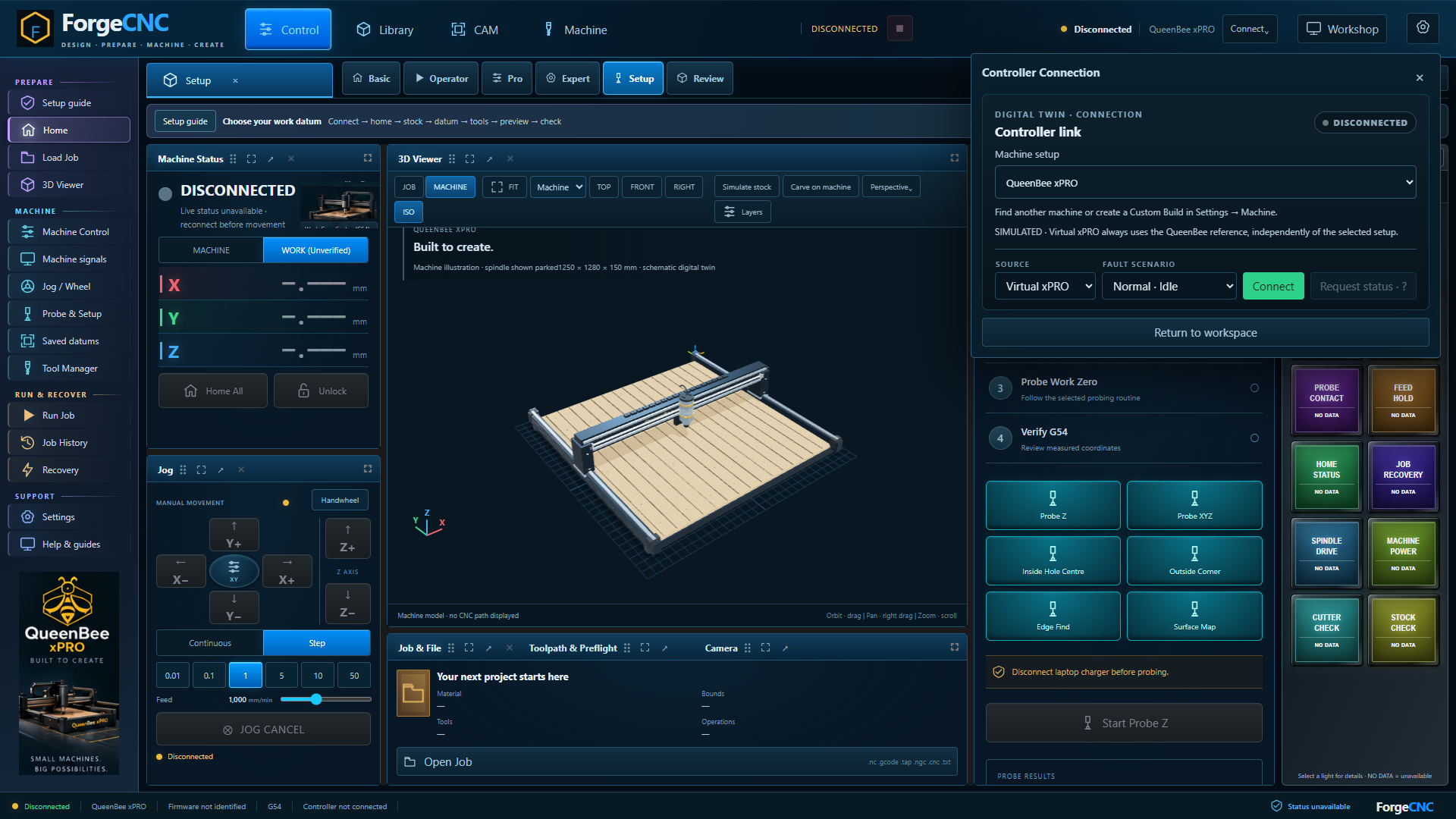
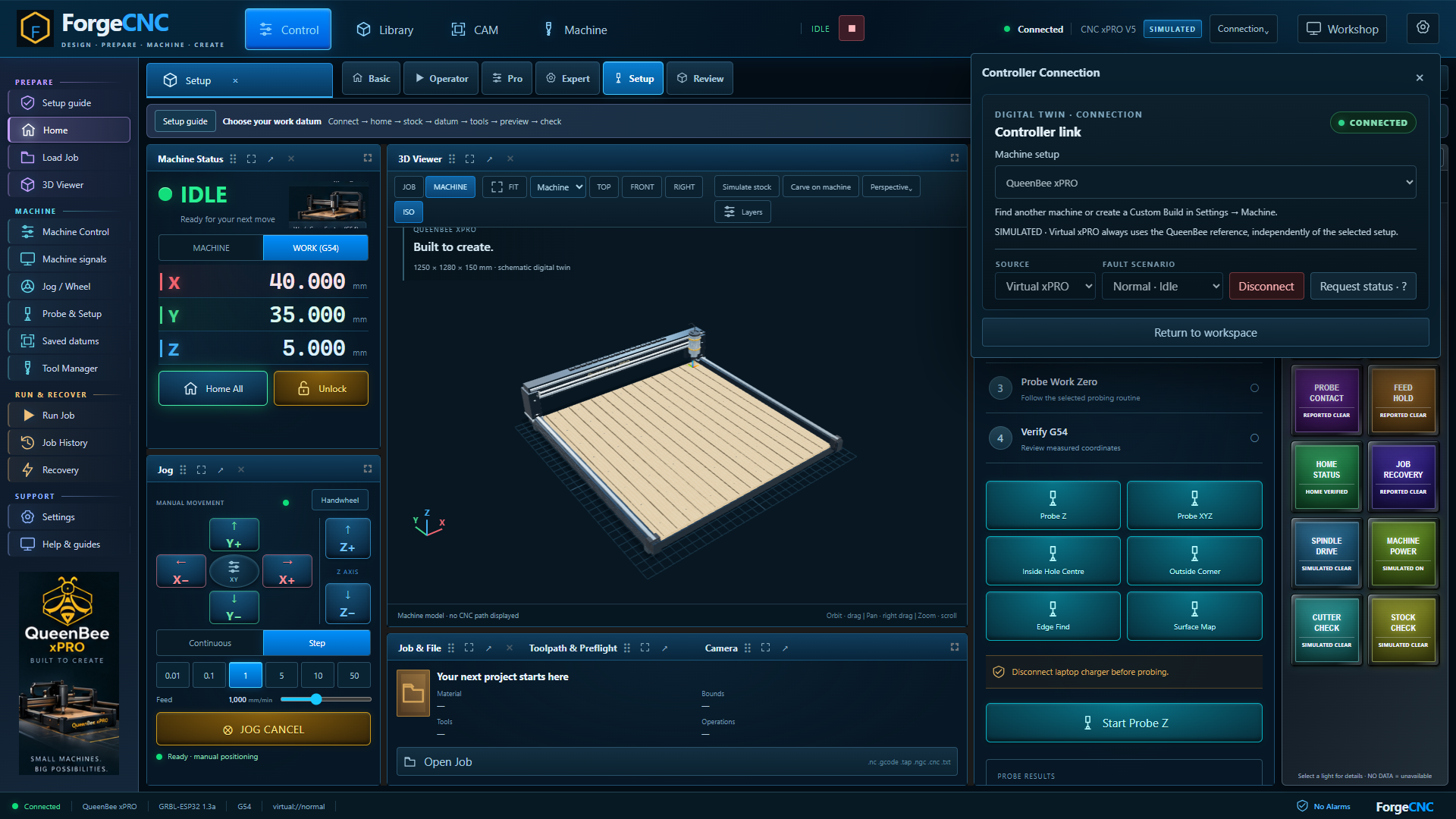
Return to Saved machines and select the QueenBee reference for the practice connection. Open the Setup workspace, then the connection menu at the top. Choose Virtual xPRO and the Normal, Idle scenario. The virtual controller always represents the QueenBee reference, even if another profile was selected earlier. Choose Connect. This is practice data inside the application. Physical serial is the separate installed-app route for real hardware, which we will cover after installation and the initial machine checks.
Use Request status to refresh the displayed state. Notice Connected and the SIMULATED badge. Machine Status shows the practice controller’s coordinates and operating state. MACHINE and WORK are different coordinate views: machine position uses the machine reference, while work position uses the selected work coordinate system. We’ll explain that relationship properly in the datum lesson. For now, recognise that these are simulated readings. A normal-coloured light, or an idle state, does not independently prove that a physical setup is safe.
On-screen emphasisConnected is a link state; SIMULATED identifies the evidence
On-screen actions
Click Request status · ?.
Point to Connected, SIMULATED, IDLE and the MACHINE / WORK controls.
Choose Return to workspace. Do not click Home All, Unlock, jog or probe.
What the learner should see
The learner can identify simulated readings and find Request status.
Recording note
The normal practice scenario can show HOME VERIFIED without a homing action in this lesson. Treat it explicitly as scenario data.
Allow approximately 12 seconds for demonstration and pauses beyond the spoken narration.
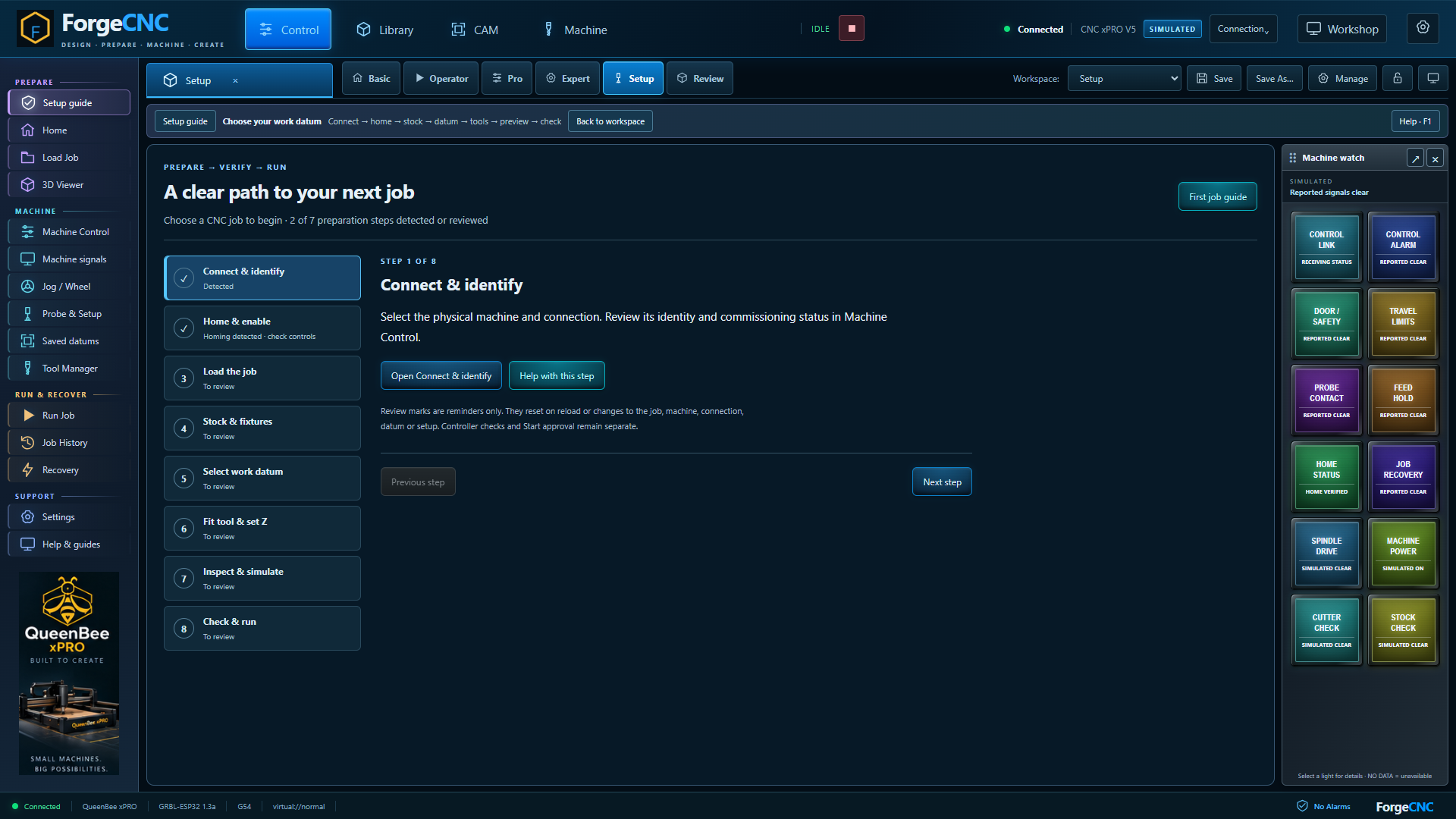
Open Setup guide in the sidebar. It gives you the order for a real job: connect and identify; home and enable; load the job; review stock and fixtures; select the work datum; fit the tool and set Z; inspect and simulate; then check and run. Some information is detected, while other steps are reminders you review yourself. Ticking a reminder does not approve motion. Today we are learning the interface. Leave physical setup steps outstanding and follow the current Start reason when preparing a real job.
On-screen emphasisThe guide organises preparation; the current checks govern Start
On-screen actions
Open Setup guide and frame its step navigation.
Point down the eight steps, without claiming that they have been performed.
Point to Check & run as the final decision; leave manual review checkboxes untouched.
What the learner should see
The learner recognises the sequence and knows why this lesson is not a completed live setup.
Recording note
For the film, pause briefly on the list rather than opening and rapidly reading every stage. Later videos cover the individual tasks.
Allow approximately 15 seconds for demonstration and pauses beyond the spoken narration.
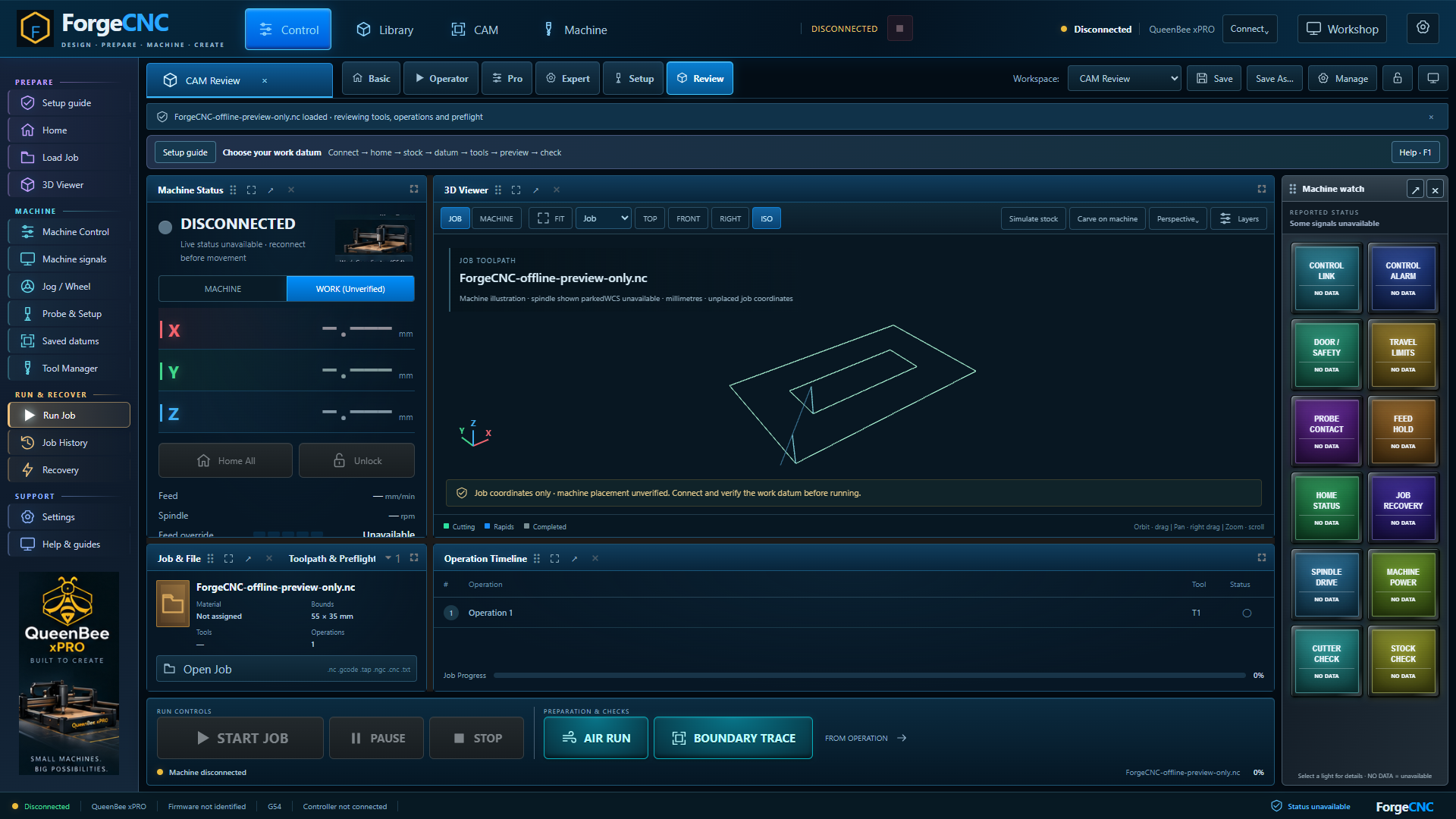
Open the connection menu again and disconnect the virtual controller. Confirm Disconnected at the top. Choose CAM Review, then Load Job, and select ForgeCNC offline preview only, dot N C, from your downloads. Check the filename after it loads. This file contains two simple rectangular routes for visual practice. It is not a cutting programme for your machine. The file area shows the analysed job, and the three-dimensional viewer shows its route. A loaded file still needs its own setup and review before any physical operation.
Open Connection → Disconnect → Return to workspace.
Choose CAM Review from the workspace selector.
Click Load Job and choose ForgeCNC-offline-preview-only.nc in the operating-system picker.
Wait for analysis and point to the exact filename and disabled Start state.
What the learner should see
The same sample filename and two rectangular routes are visible.
Recording note
Record the file-selection action on the target recording OS. The supplied screenshot shows the resulting loaded state, not an OS-specific file picker. Never distribute this file as machine-ready G-code.
Allow approximately 16 seconds for demonstration and pauses beyond the spoken narration.
12
ESTIMATED 9:20–10:10 · 82 WORDS
Inspect the route before playback
Screenshot 12 · 3D Viewer → JOB → TOP Download PNG
Narration
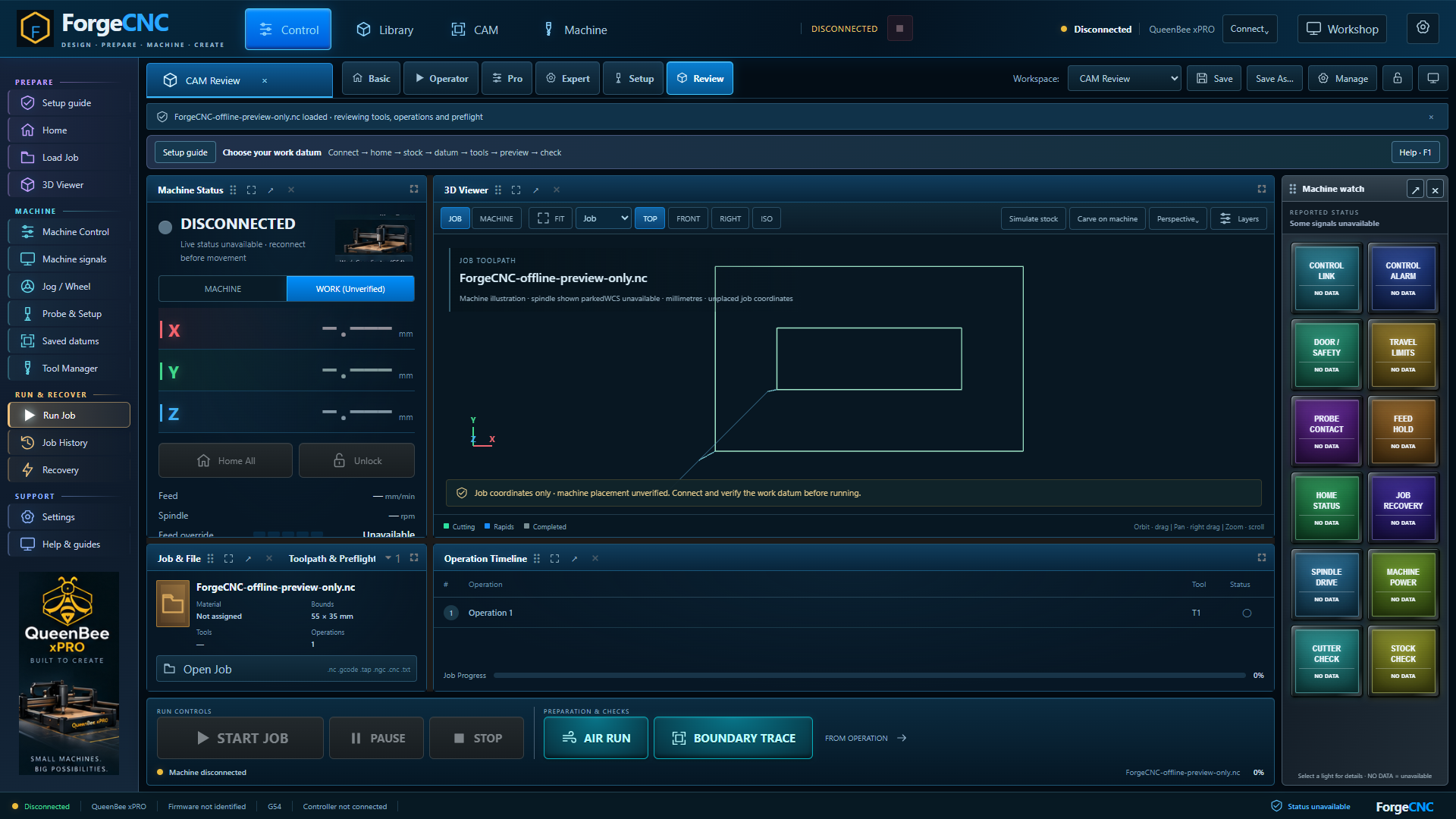
In the viewer, JOB focuses on the loaded toolpath. TOP shows its plan view, and ISO gives an angled view. Fit brings the route back into frame if you lose it while exploring. Read the legend to distinguish cutting moves from rapid travel. You can orbit by dragging, pan with a right drag and zoom with the wheel. Notice the warning that machine placement is unverified. Looking at the route does not set a datum or position real stock on the machine.
On-screen emphasisView controls change the view, not the work offset
On-screen actions
Choose JOB, then TOP.
Point to the route legend and the unverified-placement message.
Record a short ISO / Fit demonstration, then hold the clear plan view.
What the learner should see
The learner can see and reframe the complete sample route.
Recording note
Keep the route large enough for viewers to distinguish the inner and outer rectangles.
Allow approximately 12 seconds for demonstration and pauses beyond the spoken narration.
13
ESTIMATED 10:10–11:02 · 79 WORDS
Open the stock-carving preview
Screenshot 13 · 3D Viewer → Simulate stock Download PNG
Narration
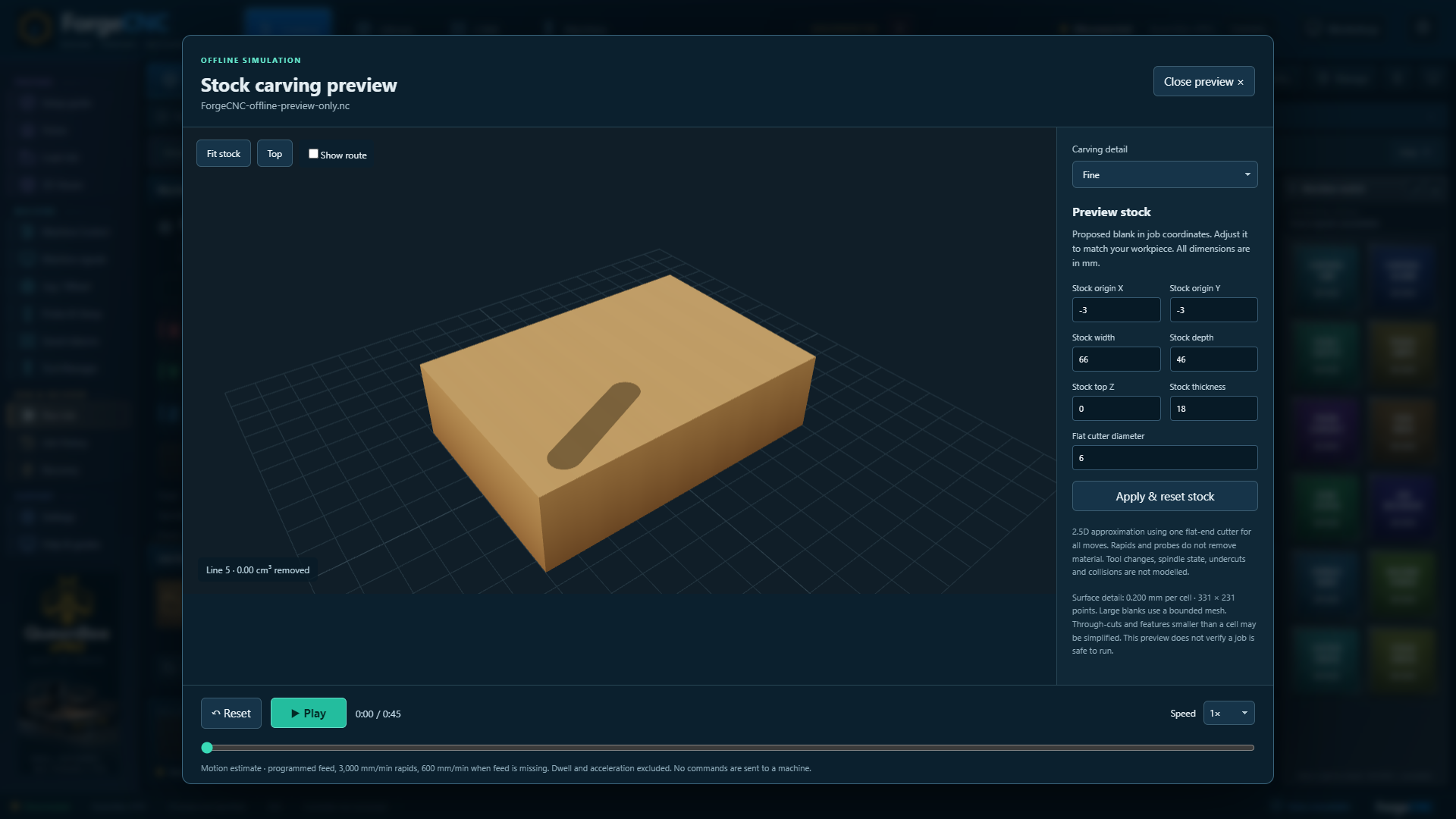
With the controller still disconnected, choose Simulate stock. The panel on the right describes the proposed blank: its origin, width, depth, top surface and thickness, plus the flat cutter diameter used for this preview. These are visualisation inputs. If you change them, choose Apply and reset stock to rebuild the preview. For this practice file, keep the displayed example values. In a real job review, you would compare them with the intended stock and tool before interpreting the result.
On-screen emphasisPreview stock dimensions are visualisation inputs
On-screen actions
Click Simulate stock.
Point to Preview stock and its labelled fields.
Keep the automatically proposed example values for continuity. Explain Apply & reset stock without implying that it updates hardware.
What the learner should see
The stock preview is open, with the sample filename and controls visible.
Recording note
Do not call the proposed blank a measured physical workpiece. Use a close insert for the field labels.
Allow approximately 15 seconds for demonstration and pauses beyond the spoken narration.
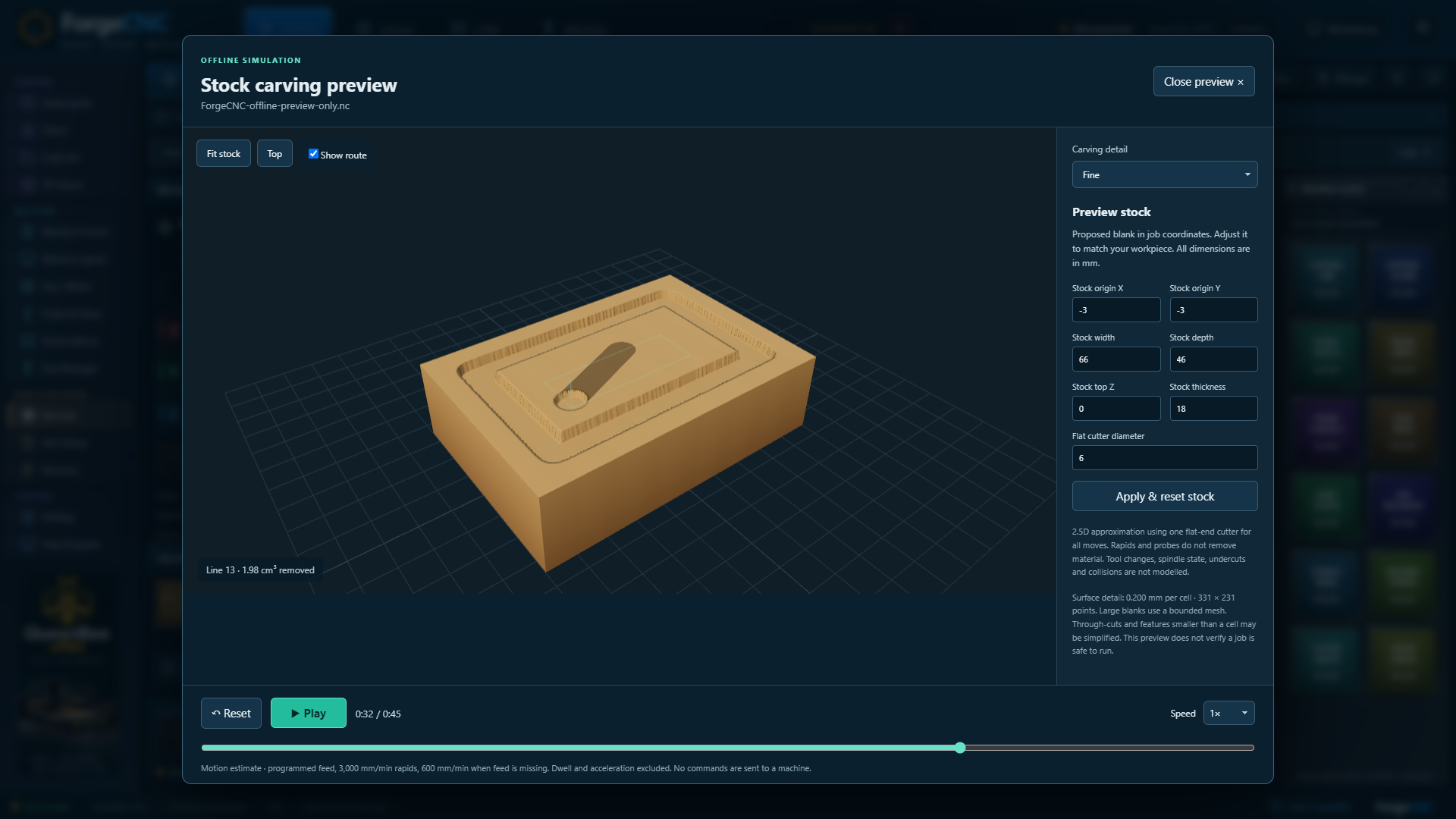
Choose Play to watch the approximate material removal, and Pause to stop the preview. Drag the timeline to examine a particular point. Show route overlays the cutter lines; Reset takes you back to the beginning. These controls send no commands to a machine. The preview uses one flat-end cutter and a two-and-a-half-dimensional approximation. It does not model collisions, all tool shapes or tool changes. Use it to understand the route and likely shape, then complete the separate setup and preflight process for a physical job.
Record actual Play, then Pause, with the changing stock in view.
Check Show route and scrub to approximately 72 percent, matching the still.
Point to Reset and the statement that no commands are sent to a machine.
What the learner should see
The learner can pause and inspect the route at an intermediate point.
Recording note
The supplied PNG is a paused, scrubbed state. Film the actual playback for the final lesson; do not present a still as a recorded running sequence.
Allow approximately 20 seconds for demonstration and pauses beyond the spoken narration.
15
ESTIMATED 12:02–12:58 · 87 WORDS
Find help and check your progress
Screenshot 15 · Sidebar → Help & guides Download PNG
Narration
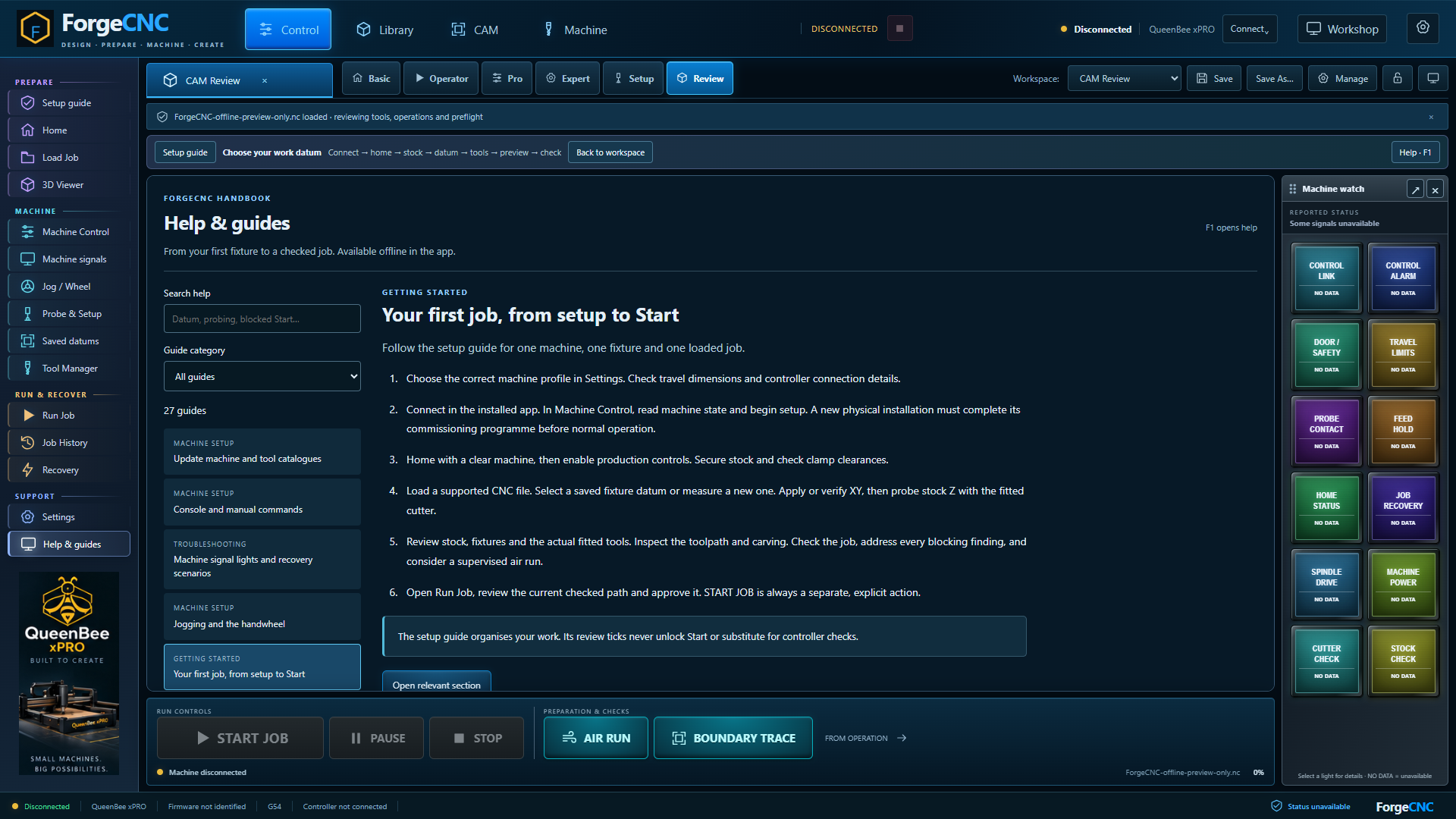
Close the preview and open Help and guides, or press F one. Search for the task you want to understand next. The website Academy and illustrated manual provide the matching written instructions and full-size screenshots. You should now be able to find the main controls, save a practice profile, export configuration, recognise a simulated connection, and preview the sample while disconnected. Pause here and repeat any step you want to practise. Next, follow the installation lesson for your operating system, then the controller connection and commissioning lessons.
On-screen emphasisPractise → install → connect and commission → prepare a real job
On-screen actions
Close the preview, then open Help & guides.
Show guide search and point to the browser-versus-installed-app and first-job guides.
Finish with the learner checklist and links to the Academy, manual and next lessons.
What the learner should see
The learner can find help and choose the correct next lesson.
Recording note
Closing card: ForgeCNC Academy · Lesson 01 complete as a learning exercise. Do not label a machine commissioned or a job approved.
Allow approximately 15 seconds for demonstration and pauses beyond the spoken narration.
End-of-lesson practice check
I can tell whether ForgeCNC is disconnected or simulated.
I can find Settings, Setup guide, Load Job and Help & guides.
I know which profile values are fictional and where real, verified machine information belongs.
I have saved the practice profile and exported application configuration.
I can load the supplied sample, see its toolpath and scrub the carving preview while disconnected.
I understand that this lesson has not qualified a real machine or approved a cutting job.
Repeat the exercise from a fresh practice session. Finishing a lesson records learning; it does not approve a physical setup or job.
THE REST OF THE SERIES
Training videos to produce next
Record installation and connection lessons first, then the physical setup sequence. The later library supports repeat work, troubleshooting and maintenance.
Every item below is planned, not a completed video. Physical lessons need the actual native application and supervised machine evidence before publication. Durations are targets.
Install and establish the machine
Video / length
What it teaches
Prerequisites and footage
02Install ForgeCNC on Windows5–7 minutes
Choose the correct package, complete installation and first launch, locate updates and record the installed version.
Before: Lesson 01; Windows computer Record: Windows installer and first-launch recording on a clean test system.
03Install ForgeCNC on Debian and understand other Linux packages6–9 minutes
Install the tested Debian package, understand dependencies and serial permissions, and distinguish documented support from unqualified distributions.
Before: Lesson 01; target Linux system Record: Debian installation and launch. Record other distributions only after their package and permission steps are verified.
04First physical connection and commissioning Stage A8–10 minutes
Identify the actual controller, select its port and baud, read firmware/settings and inputs, and save no-motion evidence.
Before: Installed app; supported actual controller; machine-specific procedure Record: Native connection UI plus controller identification and input-state footage. No-motion stage.
05Home, enable and jog: commissioning Stage B8–10 minutes
Understand machine home, direction and travel checks, deliberate jog modes and the current operating-setup blocks.
Before: Stage A satisfied; supervised physical setup Record: Synchronised native screen and camera view of axis motion and homing.
06Spindle, stopping and supporting equipment: Stage C7–9 minutes
Distinguish requested RPM from feedback, confirm stopping, and inspect cooling/extraction where independent feedback is unavailable.
Before: Preceding commissioning stages; authorised spindle procedure Record: Actual spindle/VFD setup, stop verification and supporting equipment.
Prepare a real job
Video / length
What it teaches
Prerequisites and footage
07Stock, clamps and fixture placement6–8 minutes
Describe stock and occupied fixture bounds, recognise travel and holder clearance, and identify the intended CAM origin.
Before: Qualified machine setup; reviewed workholding plan Record: Bench demonstration and matching stock/fixture entries in the native setup form.
08Machine home, work zero and saved fixture datums8–10 minutes
Understand MPos/WPos/WCO and G54–G59; save named fixture corners and distinguish selection from applying an offset.
Before: Verified home and known fixture geometry Record: Actual fixture-square inner corner, controller readback and saved-datum review.
09Build a tool library and verify the fitted cutter7–9 minutes
Distinguish supplier catalogue, owned tools and fitted geometry; check diameter, holder and measured stickout.
Before: Known physical tool and holder Record: Tool Manager, owned-tool entry and physical measurement.
10Probe stock Z and work references: Stage D9–12 minutes
Review probe contact state and checked approach, measure the intended reference and verify the resulting work zero.
Before: Qualified preceding stages and a suitable commissioned probe setup Record: Native probing workflow plus close camera view of the actual probe and workpiece.
11Configure and calibrate a tool setter: Stage E8–10 minutes
Record the installed sensor body and safe approach, calibrate a known reference and distinguish measured length from catalogue length.
Before: Installed supported setter; preceding checks satisfied Record: Setter geometry, calibration and readback; show the not-installed route separately.
12Load CAM output and review units, tools and operations6–8 minutes
Choose supported G-code, inspect units/WCS and bounds, understand operation boundaries and handle import failures.
Before: Reviewed CAM output; lessons on datums and tools Record: One original CAM file, successful analysis and a clearly labelled rejection example.
13Toolpaths, stock carving and placement on the machine7–9 minutes
Use JOB/MACHINE views, layers, Play/scrub, stock inputs and visual datum placement while recognising simulation limits.
Before: Loaded practice file; lesson on datums Record: Continuous offline capture showing both carving windows with the same source file.
Check and run
Video / length
What it teaches
Prerequisites and footage
14Preflight, blocked Start and the air run: Stage F9–12 minutes
Read blocking findings, review the exact source and geometry, and distinguish simulated inspection from a supervised spindle-off clearance run.
Before: Current commissioned setup, tool, datum and stock checks Record: Native path review, a resolved blocker and the actual clearance route on the machine.
15First supervised cut and run controls: Stage G8–12 minutes
Make a deliberate Start decision, observe progress, distinguish Pause/Resume/Software Stop from physical E-stop and verify completion.
Before: All required preceding stages and current job approval Record: Synchronous machine and native UI recording under the machine-specific acceptance procedure.
Follow the measured changeover, safe position, standstill checks and fresh Z/length review before continuation.
Before: Supported measured workflow and commissioned equipment Record: A real supported changeover; mark unavailable capability honestly where not fitted.
Understand and recover
Video / length
What it teaches
Prerequisites and footage
17Machine watch, warning lights and missing data6–8 minutes
Read FAULT/CHECK/NO DATA, inspect signal details and distinguish reported conditions from simulated or unavailable sensing.
Before: Basic interface knowledge Record: Labelled virtual fault examples followed by real readback examples where available.
18Recovery from an interruption: Stage I10–14 minutes
Preserve the original source and journal, re-establish measured references, review correction/return/remainder, and continue only through the checked workflow.
Before: Commissioned supported recovery setup and original source evidence Record: A prescribed supervised interruption and complete recovery recording. Script against the actual installation before filming.
19Recovery decision clinics3–5 each minutes
Short separate cases for power/link loss, probe/limit blocks, tool slip or breakage, moved stock and wrong source/WCS; show when continuation must be abandoned.
Before: Recovery foundation lesson Record: Clearly labelled simulated cases; use physical evidence only where the scenario has been safely demonstrated.
Repeat and maintain
Video / length
What it teaches
Prerequisites and footage
20History and repeat-job preparation5–7 minutes
Locate completed/interrupted runs, inspect source identity and prepare a repeat job with fresh checks instead of reusing old approval.
Before: Completed practice or supervised run Record: Job History and the new preparation flow.
21Console commands and controller readbacks6–8 minutes
Use the supported-command reference and readbacks, understand fill-only examples/history and interpret rejected requests.
Before: Known connection mode; commissioning for physical actions Record: Start with virtual readbacks; physical command demonstrations remain subject to native checks.
22Update machine and tool catalogues6–8 minutes
Review catalogue revisions, import supplier libraries and separate directory products from owned/measured tools.
Before: Dated backup; supported catalogue/library files Record: Review/apply/rollback of a labelled training update and tool import results.
23Backups, restore and software upgrades8–10 minutes
Preserve application, tools and controller data separately, review replacement, and use a verified upgrade/rollback process.
24Arrange the workspace, second monitor and camera6–8 minutes
Save layouts, restore panels, use Workshop/themes and a second display, and understand advisory camera/snapshot use.
Before: Suitable display/camera; host permission where applicable Record: Real display changes; camera footage labelled synthetic if it is a test source.
25Diagnostics, flight recorder and the virtual Fault Lab7–9 minutes
Collect useful source/state evidence, export diagnostics and practise fault interpretation without confusing a twin with hardware qualification.
Before: Basic recovery knowledge; virtual environment for fault injection Record: Diagnostic export, traffic/flight-recorder views and explicitly virtual fault scenarios.
Marketing video follows separately
Build a short product introduction around a clear promise: see the job, prepare the setup and understand what comes next. Reuse selected clean product footage, with its evidence labels. The marketing film should have its own audience, message and call to action; it should not compress this tutorial or claim unverified machine compatibility.